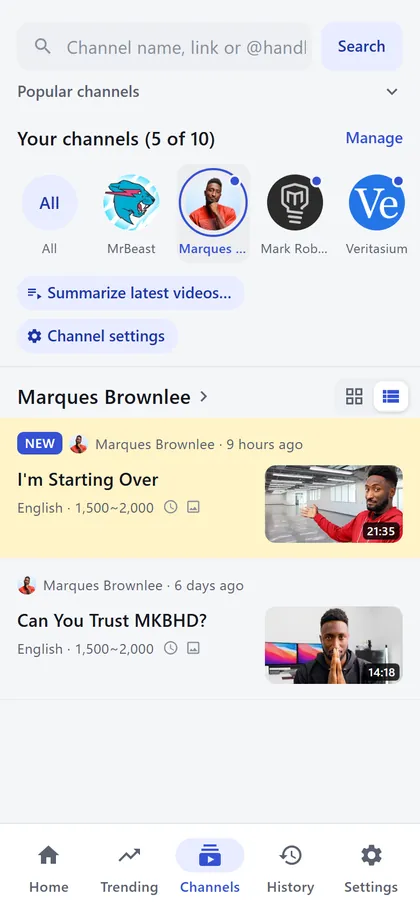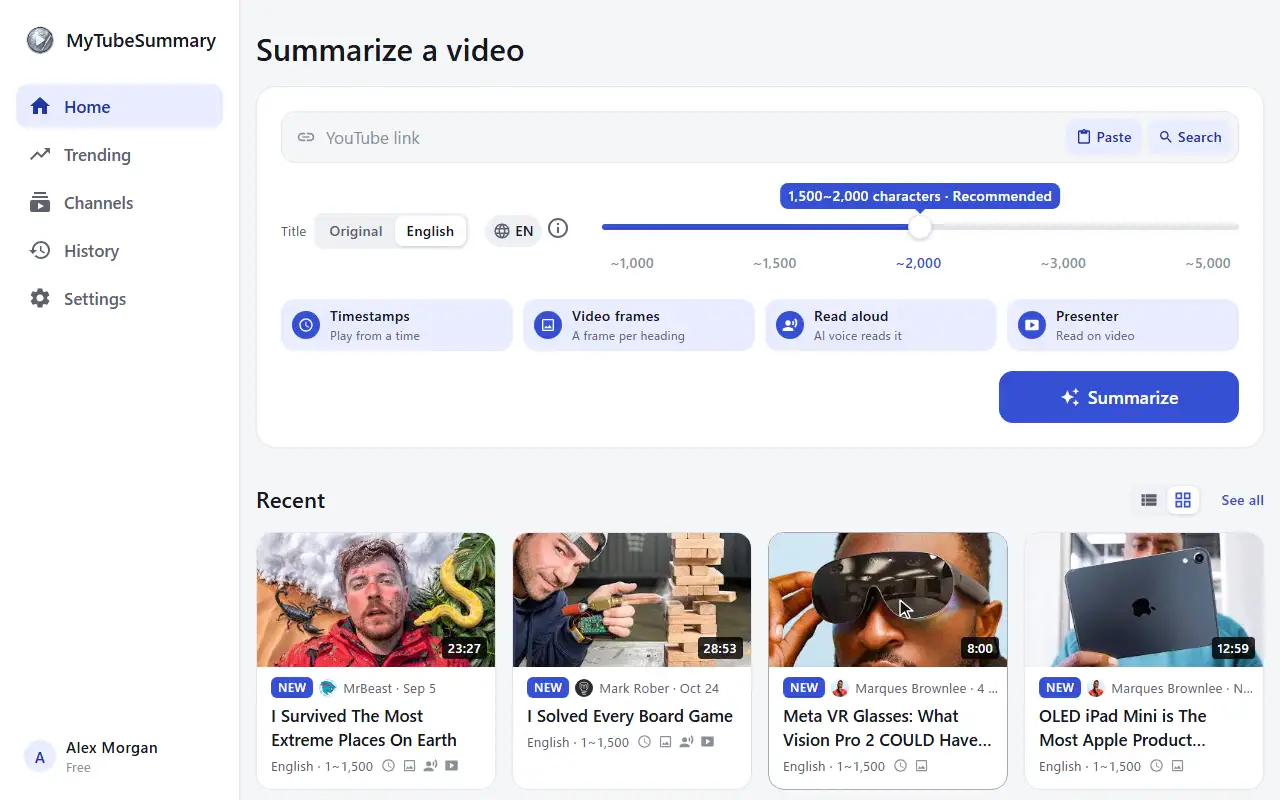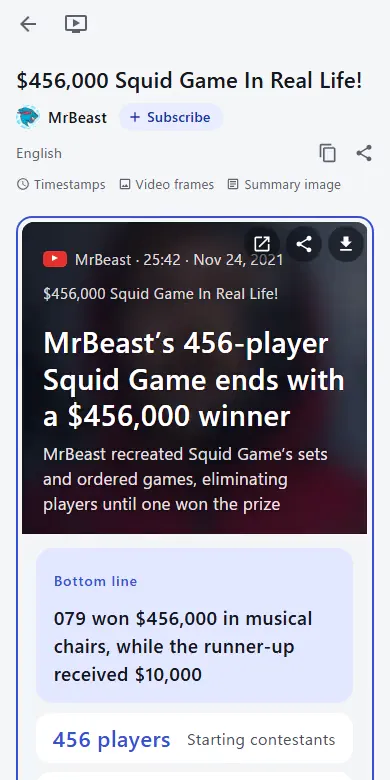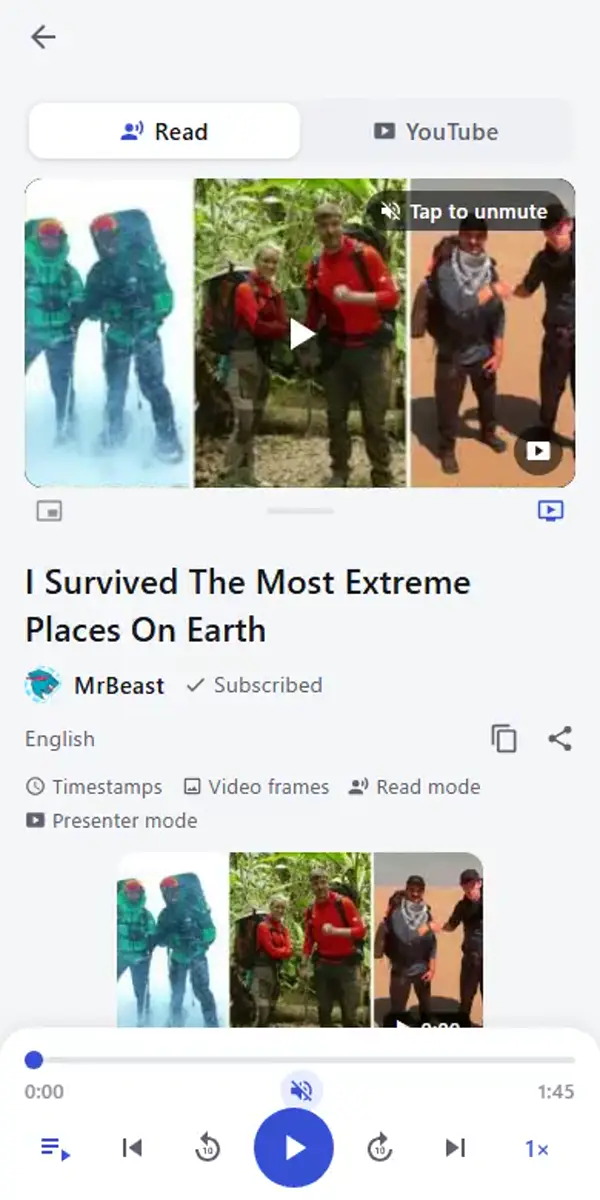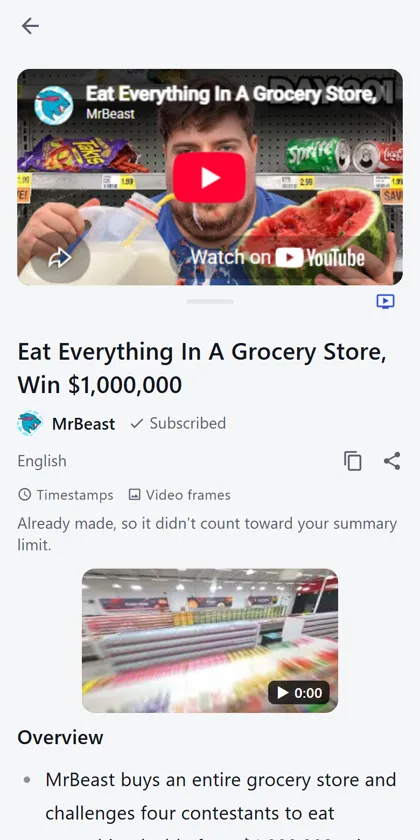
If you already subscribe to dozens of channels on YouTube, setting them up again by hand would take an evening. Import from YouTube lists them for you.
01
How it works
- On the Channels tab, choose Import from YouTube.
- Google asks you to allow MyTubeSummary to see your YouTube subscriptions, read-only.
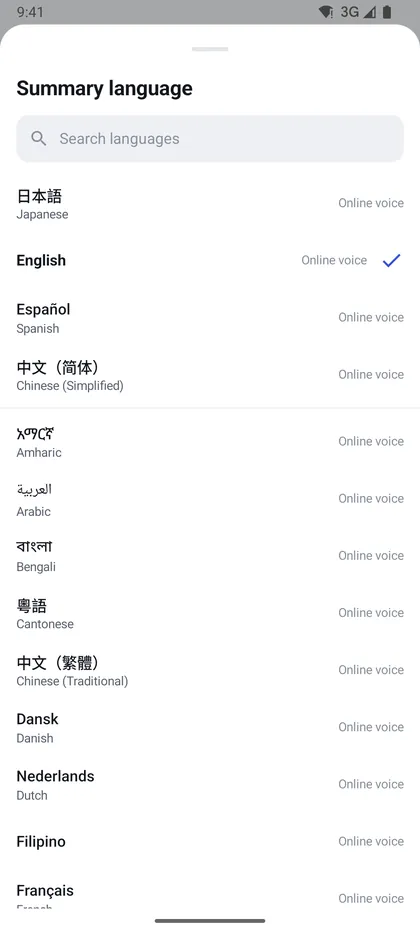
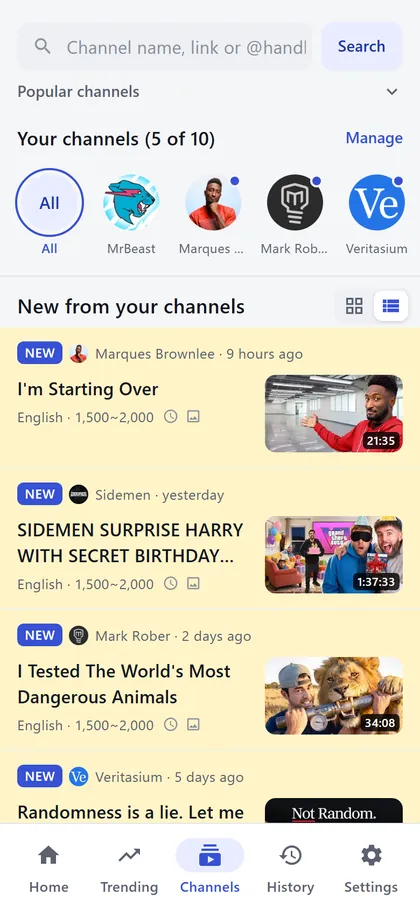
- Your channels appear in a list with their pictures. Tick the ones you want, and choose the summary language, length and options for all of them.
- MyTubeSummary subscribes to the ticked channels and starts summarizing their new videos.
What it reads, and what it keeps
- It reads your list of subscribed channels once, with the permission you just gave.
- It does not keep the list or the access it was given, and it never changes anything on your YouTube account: no subscribing, no liking, no commenting.
- You can withdraw the permission at any time in your Google account's security settings.
Limits
There is a limit on how many channels one account can follow, and on Free it is lower than on Pro. A channel that publishes nothing but music or Shorts will not produce summaries, because those are not summarized. Importing is available on Android and the web; check the app you use, as the apps can differ.
02
After the import
Each channel's page lets you change its settings later, and Summarize latest can summarize a few of a channel's most recent videos at once, so the feed is not empty on the first day.