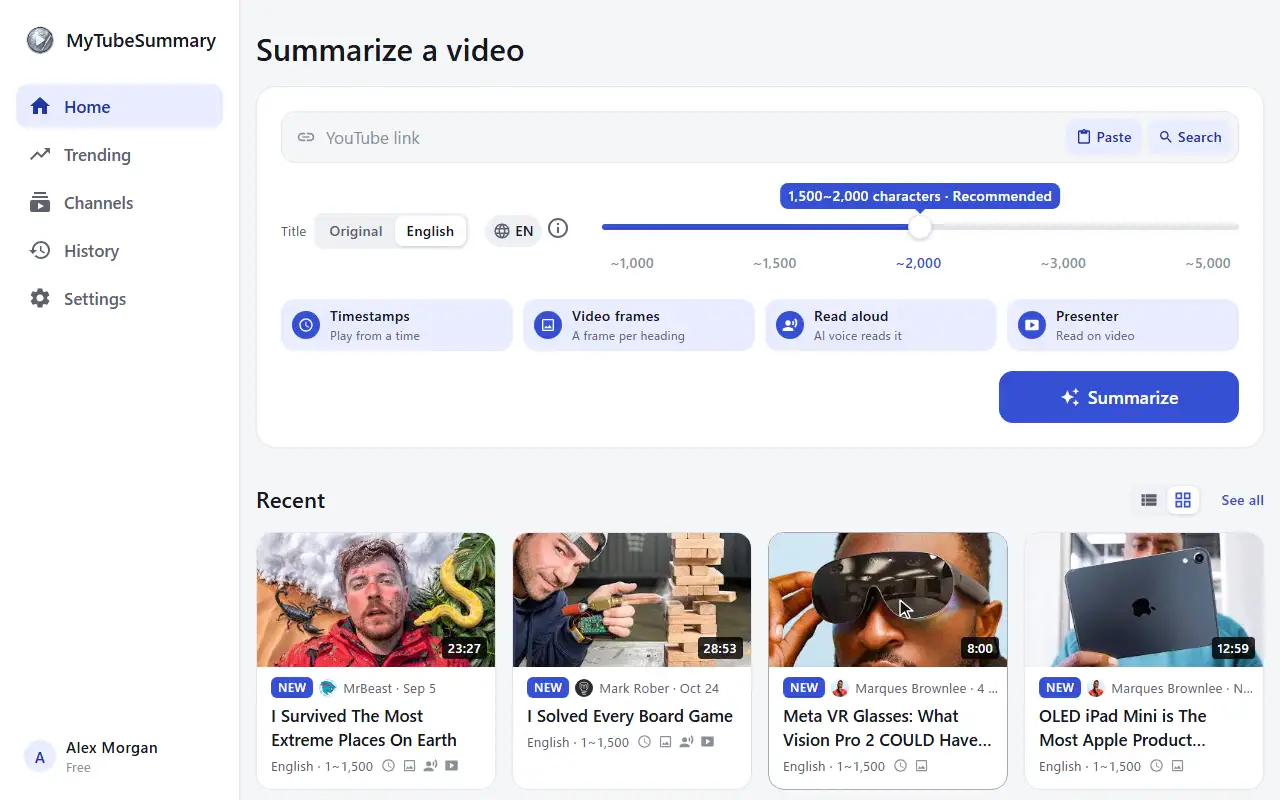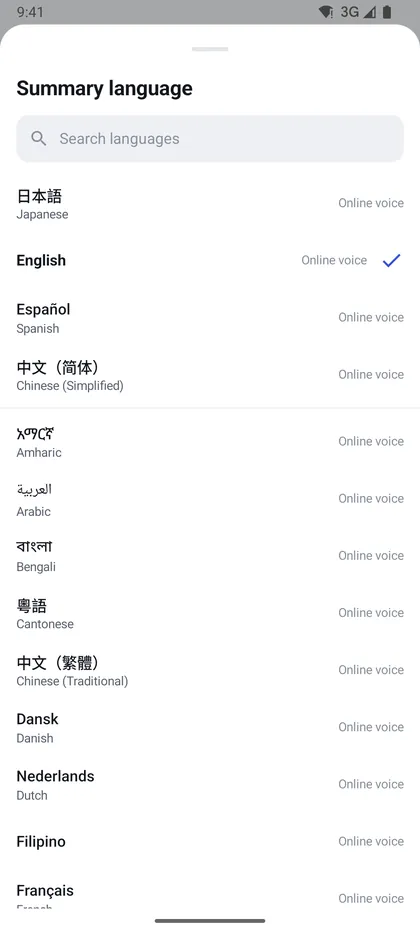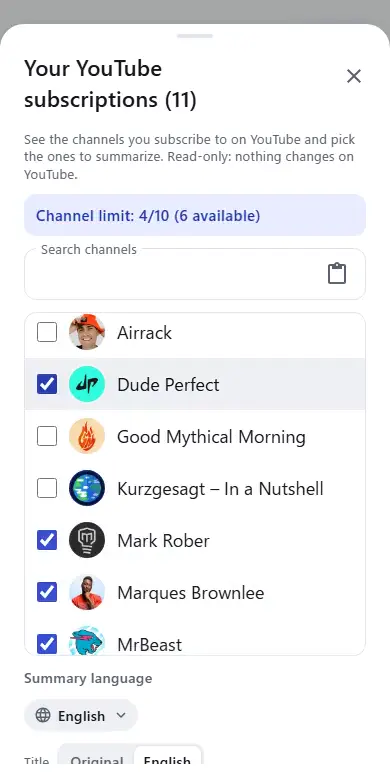
A text summary tells you what was said. A scene picture shows you where. With Video frames on, every heading of a summary has a picture taken from the video at that moment, next to the time the part begins.
01
What you see
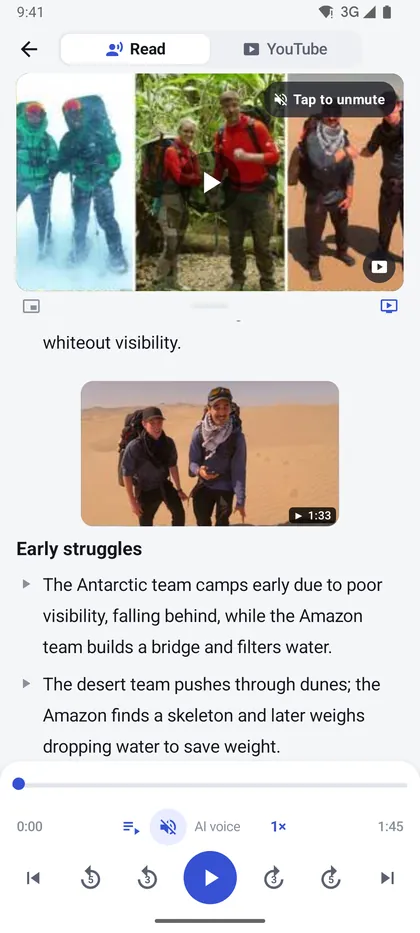
- A frame above each heading, two thirds of the text's width, so the summary still reads like a document.
- The time of the part, as a button. Tap it and the embedded YouTube player jumps to that moment and plays.
- On a wide screen the video sits beside the summary and a contents list stays on the right, so you can jump between parts without scrolling.

02
Why it helps
- Slides and diagrams: a lecture or a product talk shows its key slide at the moment it is explained. The frame shows it without opening the video.
- Checking a claim: if a point in the summary surprises you, the time takes you to exactly that part of the video.
- Skimming: scanning the pictures down the page tells you how the video is built before you read a line.
03
Where the pictures come from
The frames are YouTube's own preview pictures for the video, so nothing is rendered from the video file. A video that has no previews, or an upload that is very new, may show fewer pictures.

Turn it on or off
Video frames is one of the options on Home, and each channel has its own switch. The choice you make on Home is remembered and shared between the web, Android and iPhone. On Free the number of summaries with frames each week is limited; Pro has them on every summary. The apps can differ in what they show, so check the plan screen in the app you use.