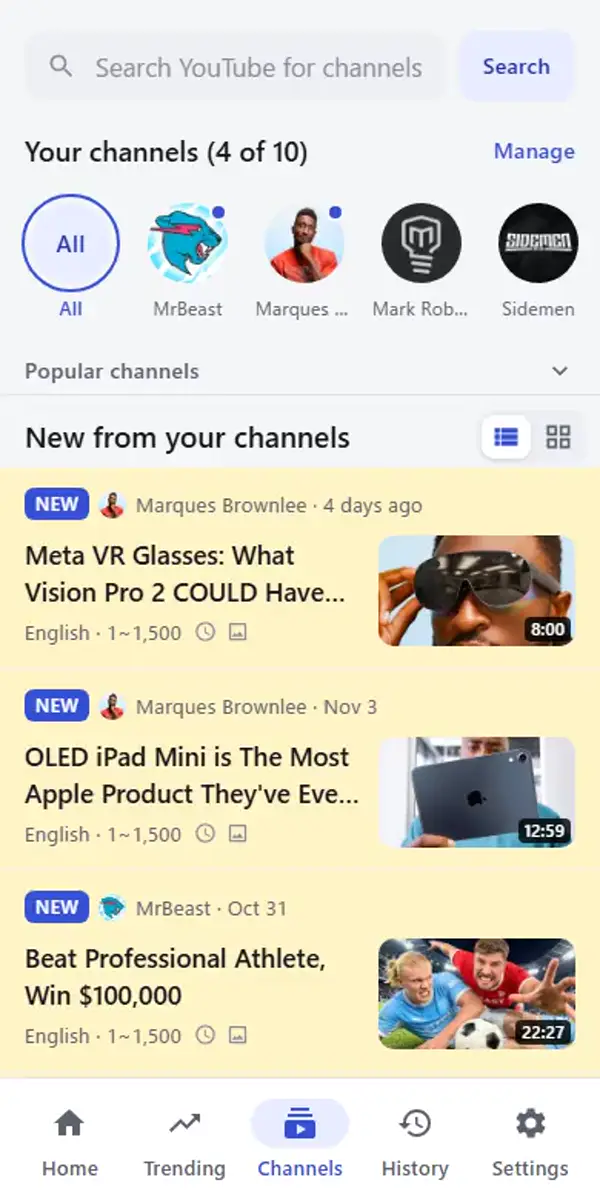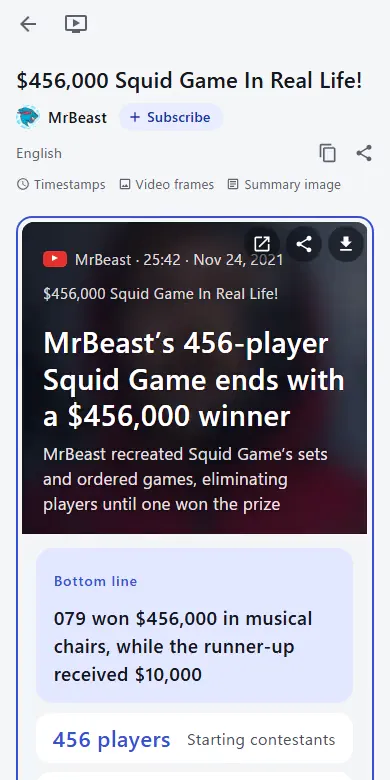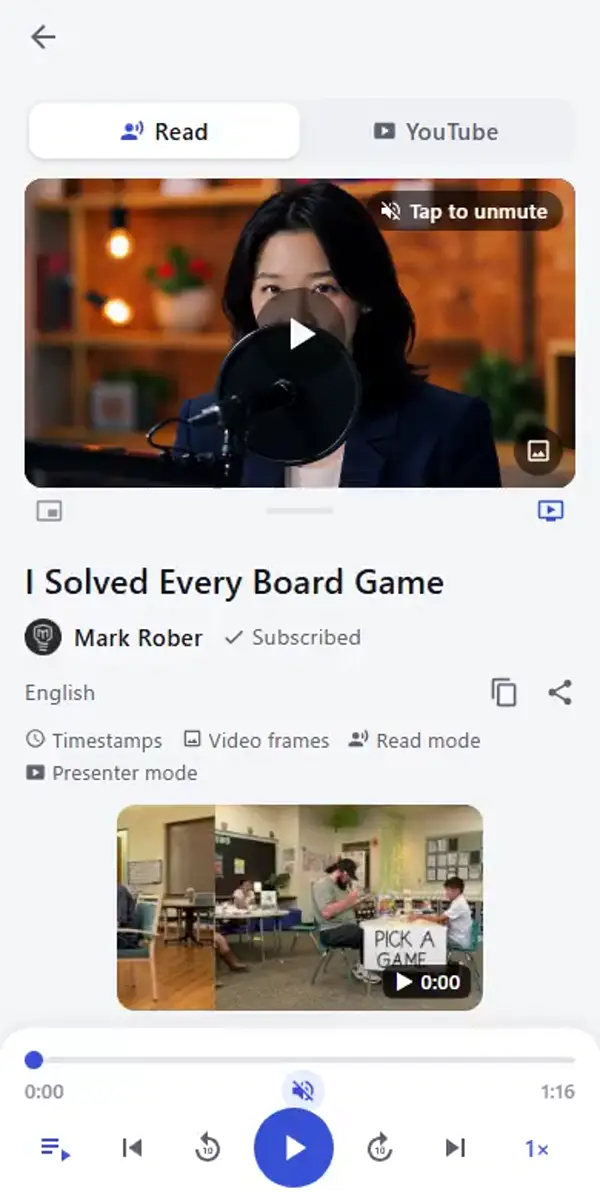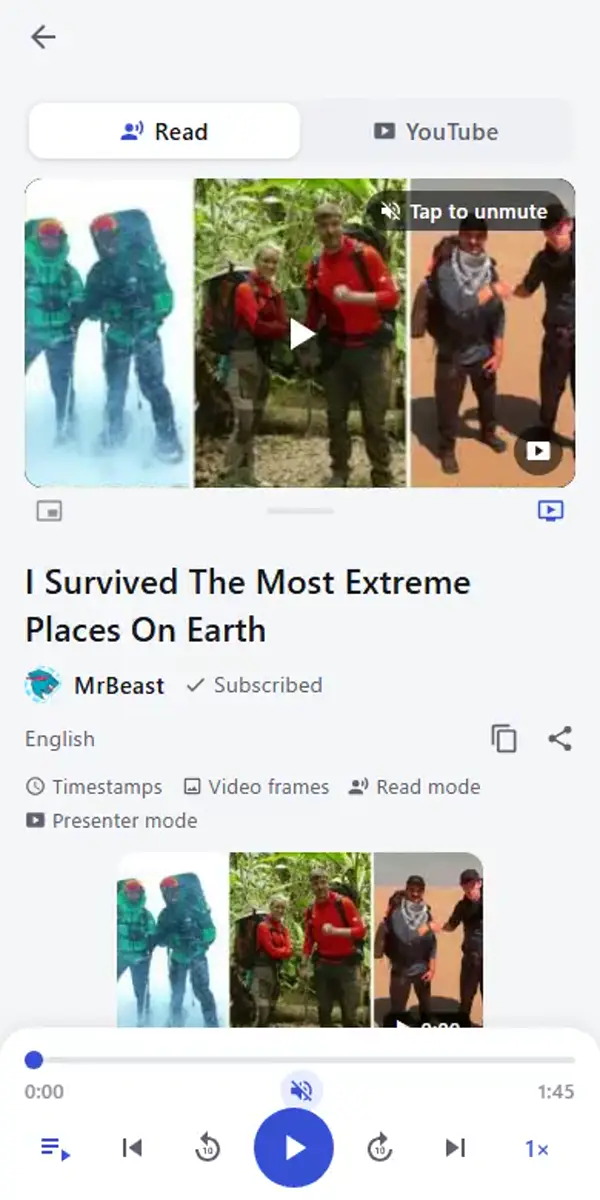
Long videos are hard to fit into a day. A good summary tells you in a couple of minutes whether a video is worth your time, and gives you its main points if it is. This guide walks through the whole flow in MyTubeSummary, from the link to the finished summary.
1. Paste the link
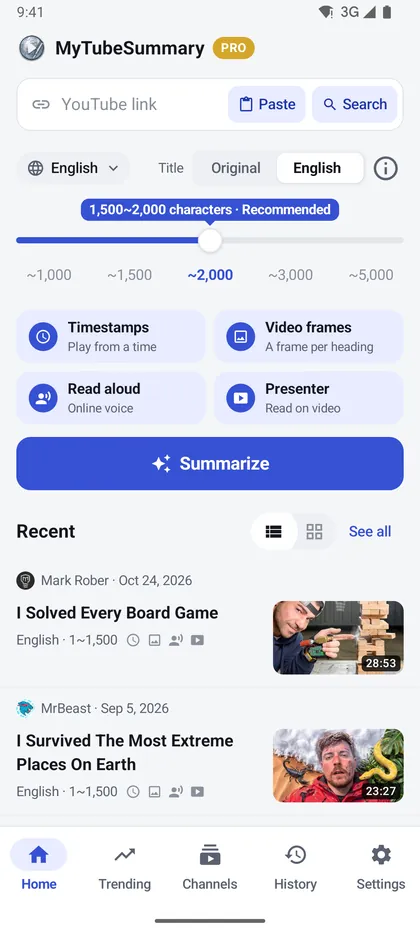
Open MyTubeSummary on the web, Android or iPhone and sign in. On Home, paste the video's address into the link field (the Paste button reads it from your clipboard). Normal watch links, short youtu.be links and links copied from the YouTube app all work. Shorts and music videos are not summarized.
2. Pick the language and the length
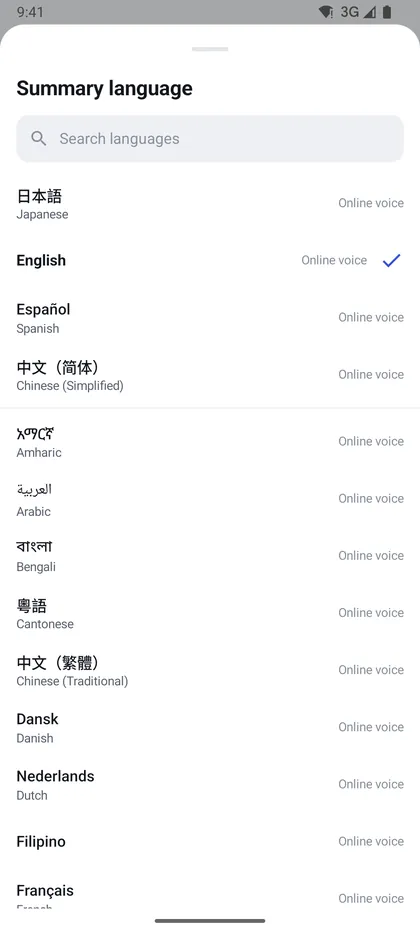
- Language: the summary can be written in any of 35 languages, whatever language the video is spoken in. The search box in the language list finds a language by its own name.
- Length: five ranges, from a short digest to a detailed account of about 3,000 to 5,000 characters. A shorter range is for deciding quickly, a longer one for studying.
- Options: times (a time mark by each heading), video frames (a scene from the video by each heading), read aloud, and the summary image.
3. Read it
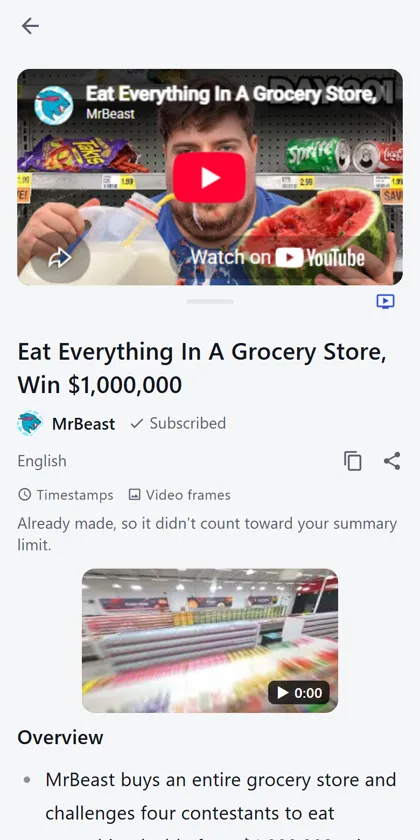
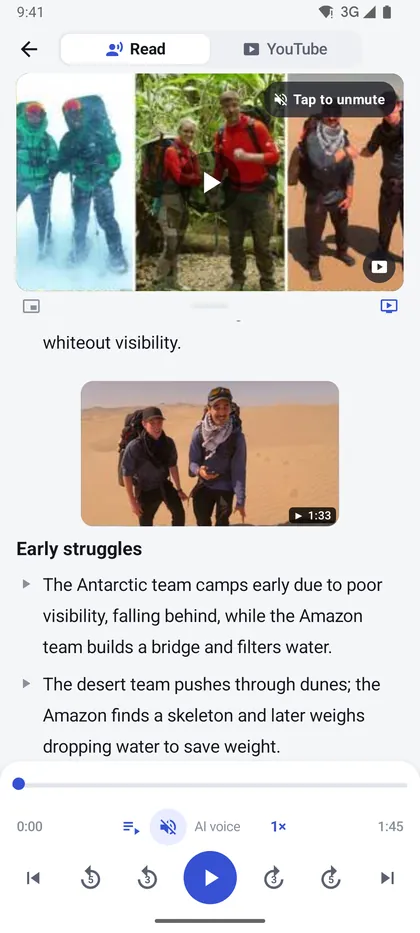
The summary is split under headings, and each heading starts with the time its part begins. Tap a time and the embedded YouTube player jumps to that moment, so you can check any point against the video itself. If frames are on, each heading has a picture of the scene.
4. Use it your way
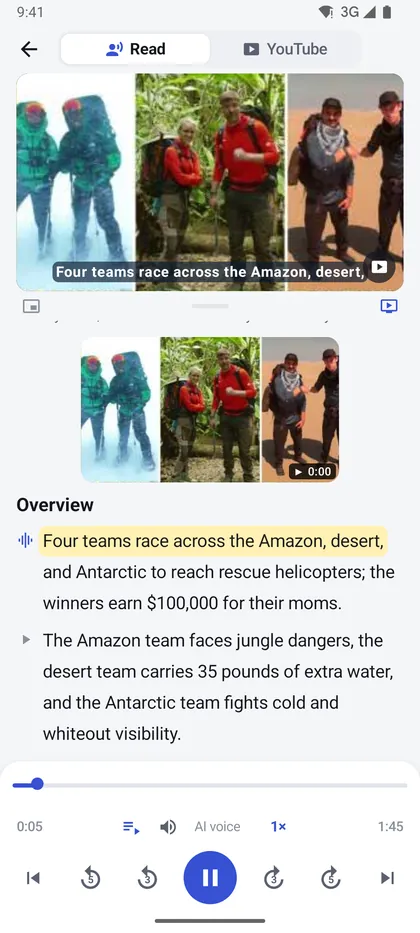
- Hear it: read aloud reads the summary in a natural voice and marks the sentence being read.
- Share or save it: copy the text, share it, or share the summary image, a single picture with the key points and numbers.
- Find it again: every summary is kept in History, with a search that looks at titles and summaries, on every device you sign in to.
What it needs from the video
MyTubeSummary summarizes from the video's subtitles (spoken-word captions). A video that has none, a private video or a members-only video cannot be summarized, and the app says why instead of charging you for it.